Getting started
Click the Stylebot icon in the toolbar, then Style this page. Or press alt+shift+M on any tab, or right-click an element and choose Stylebot → Style Element.
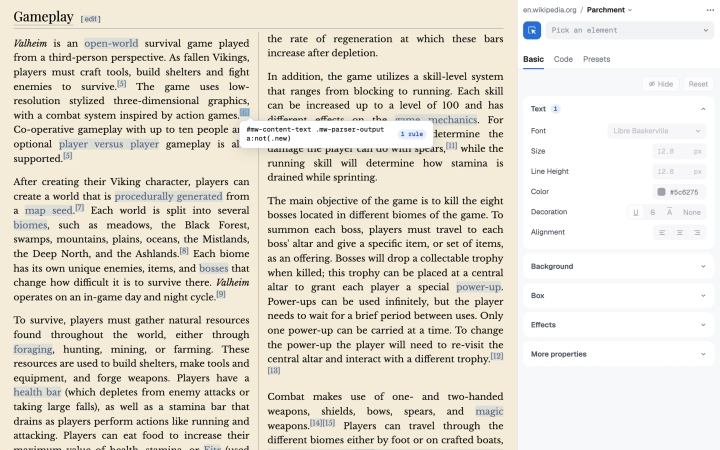
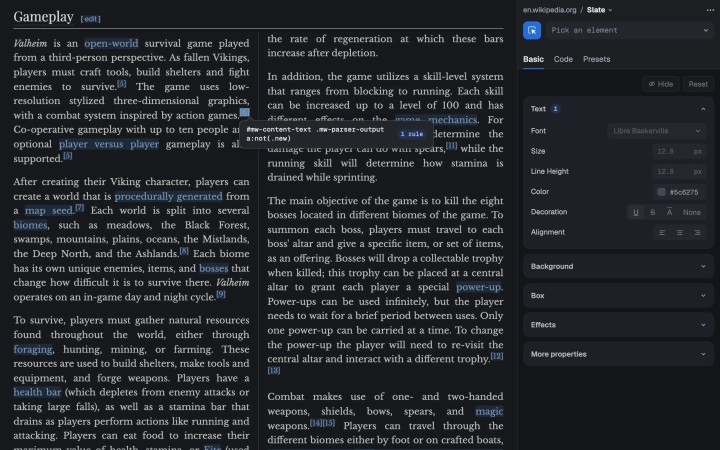
Click the picker, hover the page and click an element. Press ↑ before clicking to select its parent instead. Then change it in Basic, or write CSS in Code. Changes save as you make them and load every time you visit the site.
- Fonts
- Search 400 Google Fonts and Stylebot loads the one you pick, or type any font installed on your computer.
- Editor position
- In Chrome and Edge the editor opens in the side panel. Use Position in its ⋯ menu to open it in a separate window or dock it in the page. Firefox and Safari have no side panel.
- Turning a style off
- Use the switch in the popup, or alt+shift+S. The style is kept, just not applied.
Profiles
A profile is a separate stylesheet for the same site, so you can keep more than one look and switch between them. Only one is applied at a time, and every site starts with Default.
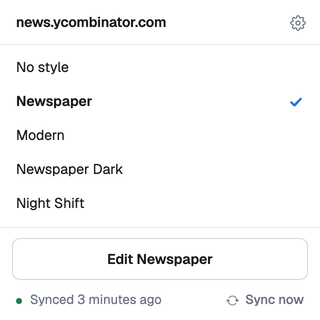
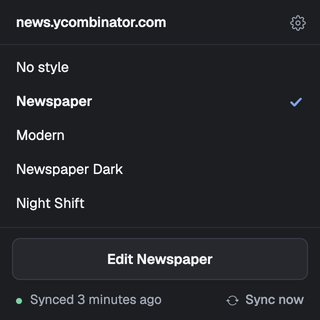
Click the profile name next to the site in the editor's header to create, rename, duplicate or delete profiles. Switch between them there or in the popup, where No style turns styling off for the site. New profiles start empty.
Presets
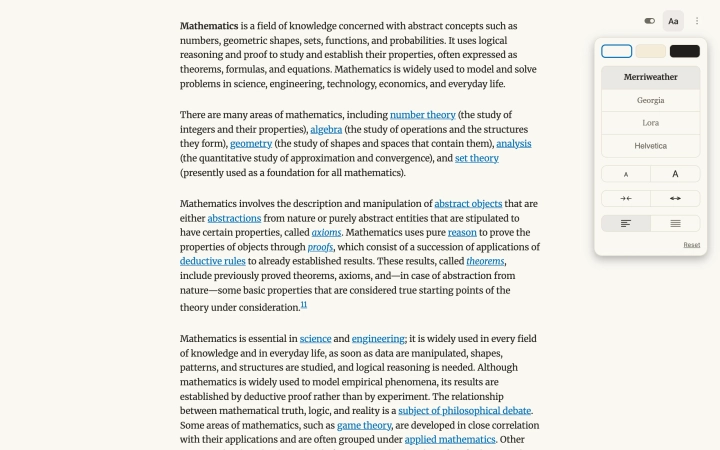
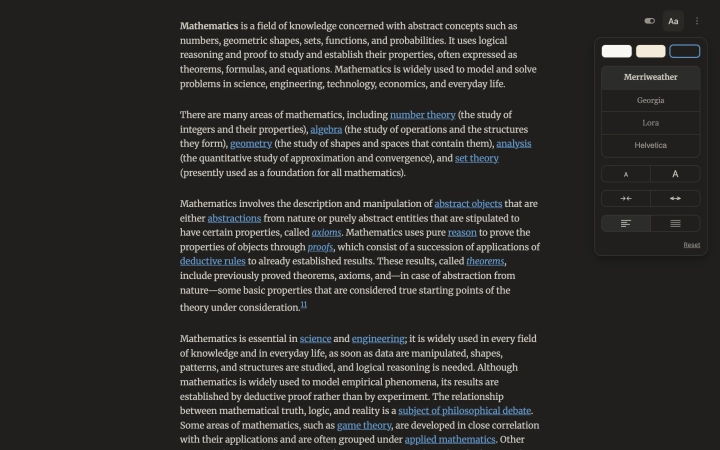
The Presets tab has two, and both stack with your own changes. Readability turns a site's articles into a clean reading view, with a choice of theme, font, size and width; it leaves pages that aren't articles alone. Grayscale removes color from the site, at any strength.
Sync and version history
- Google Drive sync
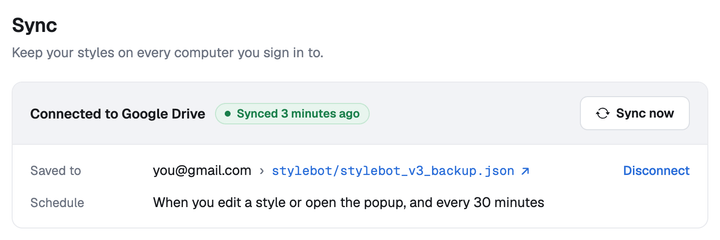
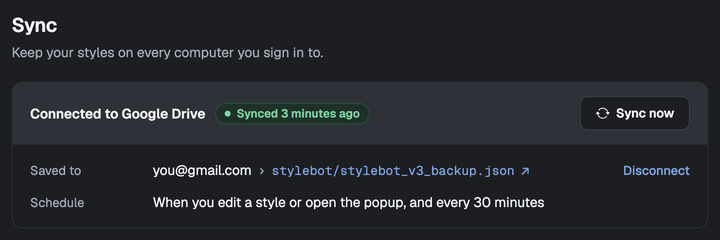
- Connect Google Drive in Options. Your styles, including profiles, sync every 30 minutes and right after you edit. Stylebot only sees the files it creates in your Drive, and there is no Stylebot server.
- Conflicts
- If a style changed on two computers, your newer edit is kept and the other version is saved in a comment, so nothing is lost.
- Backup
- Export and import all your styles as JSON from Options.
- Version history
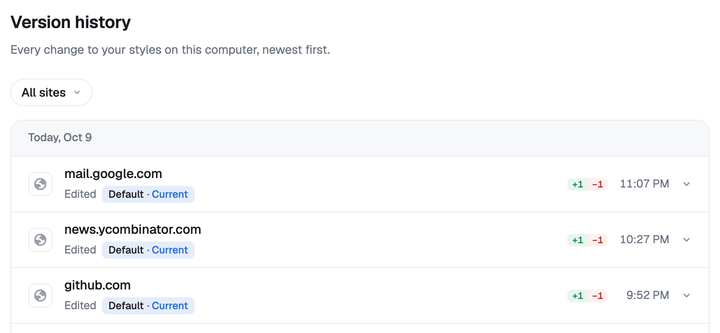
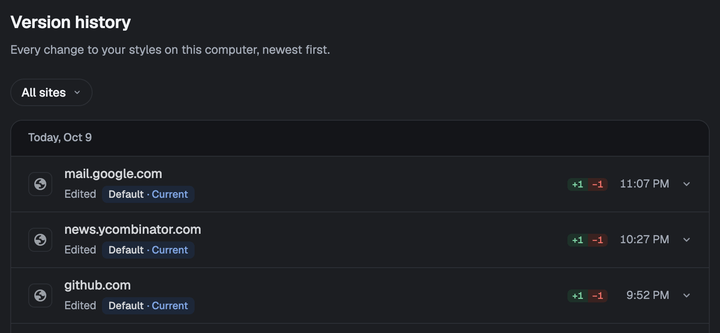
- Every change on this computer is kept in Options, including ones that arrive through sync. Restore any earlier version, for some sites or all of them.
Gallery
The Gallery has styles other people made with Stylebot. Preview one on the site it’s for, read its CSS, and install it in a click.
- Publishing a style
- Choose Publish to Gallery from a style’s ⋯ menu in the popup, or from the editor’s ⋯ menu, and sign in with Google. Your edits stay on your computer until you publish an update.
- Your styles
- Sign in on the Gallery to rename or delete the styles you published, and to change your username.
URL rules
By default, Stylebot matches styles to websites by domain name. Edit a style's URL in Options and use these patterns for anything more specific.
**Matches any character sequence.*Matches any character sequence until a / is found.,Separates a list of patterns. A URL matches if any pattern matches.^At the start of a URL, turns it into a regular expression.Examples
docs.google.com- The domain docs.google.com or any of its subdomains.
docs**- Any URL beginning with docs.
docs*.google.com- docs.google.com, docs1.google.com, docs2.google.com and so on.
*.ycombinator.com- news.ycombinator.com and apps.ycombinator.com.
docs.google.com, spreadsheets.google.com- Either domain, or any of their subdomains.
^http://www.reddit.com/$- The Reddit homepage only.
*- Every site. Useful for styles you want everywhere.
CLI
The stylebot command lets a coding agent like Claude Code, Codex or Cursor restyle sites right in your browser, using your own subscription instead of an API key. You can run the commands yourself too.
- Setup
- Install the CLI, connect it to your browsers, then turn on Allow command line access in Options. The CLI page walks through each step. Chrome and Edge only for now.
- Claude Code
- Add the Stylebot plugin and ask for a change with
/stylebot, such as a dark theme for a site. - Privacy
- CLI access is off until you turn it on. Stylebot and the CLI talk only to each other, on this computer; an agent sends what it reads to its own provider.
Keyboard shortcuts
Global shortcuts work on any page Stylebot can style; change them in your browser's shortcut settings, linked from Options. For the editor's own shortcuts, press ? in the editor.
Help and support
Found a bug or have an idea? Open an issue on GitHub. Stylebot is free and open source, maintained since 2011. If it's useful to you, you can support it by buying me a coffee.